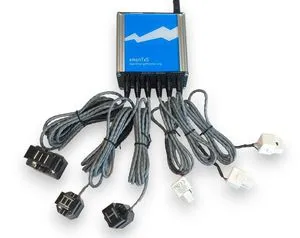
The emontx component allows you to use ESPHome to create a connection to an OpenEnergyMonitor emonTX via a supported device (ESP32 recommended).
This component is a global hub that establishes the connection to the EmonTx via UART bus and translates the received data.
Using the emontx sensors, you can then create sensors for Home Assistant that track voltage, current, power as measured by CTs (up to 12), pulse data, and temperature depending on the configuration of the emonTX.
The component can send data to an MQTT Broker either as JSON or as individual topics to be consumed by any system.
This component can also be used to send data to a remote emoncms instance such as emoncms via HTTP or a locally hosted system via HTTP or MQTT. Working directly with emoncms seamlessly is a key benefit of this component, allowing you to integrate your energy monitoring data with powerful visualization and analysis tools.
The EmonTx can be connected to your ESP device via the serial UART interface.
Depending on your emontx version, an expansion board may be available in the shop that will simplify the wiring. You can also use the standard EmonTx without an expansion board, but you will need to wire the UART/Vcc/Gnd pins manually.
Make sure the EmonTx is configured to output data in JSON format. The default baud rate for communication is 115200.
As the communication with the EmonTx is done using UART, you need to have an UART bus in your configuration with the rx_pin connected to the data pin of the EmonTx and with the baud rate set to 115200.
id (Optional, ID): Manually specify the ID used for code generation or multiple hubs.
uart_id (Optional, ID): Manually specify the ID of the UART Component if you want to use multiple UART buses.
on_json (Optional): An automation that will be triggered whenever new JSON data is received from the EmonTx. Within this trigger, the raw_json variable (string type) contains the received JSON data as a string. A parsed JSON object is also available as the json variable (JsonObject type), which can be used to access and manipulate specific fields in the JSON data.
on_data (Optional): An automation that will be triggered for every serial line received from the EmonTx (both plain text and JSON). Within this trigger, the data variable (string type) contains the received line. This is useful for debugging, logging all serial output, or handling configuration responses from the EmonTx.
Here is a minimal working configuration to get started with basic sensor readings from the EmonTx:
uart:  id: emontx_uart  rx_pin: GPIO16  tx_pin: GPIO17  baud_rate: 115200
emontx:
sensor:  - platform: emontx    tag_name: "V1"    name: "Voltage"  - platform: emontx    tag_name: "P1"    name: "Power CT1"  - platform: emontx    tag_name: "E1"    name: "Energy CT1"
This will create three sensors in Home Assistant tracking voltage, power, and energy from the first CT channel. See the Sensors section below for all available sensor types and their tag names.
The pulse sensor is a single counter input and doesn’t use indexing.
The actual availability of sensors depends on your specific EmonTx configuration and firmware.
Not all sensor indexes may be active or report values in your setup.
For example, in a single-phase system, only Vrms/V1 will provide readings, while V2 and V3 won’t be available.
To check what sensors are available in your EmonTx, you can refer to the EmonTx documentation or the firmware configuration.
You can also use the ESPHome logs to see which sensors are reporting data.
For example:
[14:43:36][I][emontx:099]: Received data: {"MSG":54378,"V1":234.16,"V2":234.13,"V3":234.22,"P1":0,"P2":0,"P3":0, "P4":0,"P5":0,"P6":0,"E1":74,"E2":-9,"E3":-12,"E4":7,"E5":-4,"E6":-6,"pulse":0}
If you do not use the API component, ie the module is exclusively used for forwarding data to Emoncms and it’s not connected to any Home Assistant instance, you must remove the api: configuration or set reboot_timeout: 0s, otherwise the ESP will reboot every 15 minutes because no client connected to the native API.
The emoncms API key must be a Read/Write API key. Read-only API keys will not work for posting data. You can find your Read/Write API key in the emoncms web interface under My Account > API Keys.
The node parameter must be compliant with what emoncms expects. Depending on your emoncms server configuration, this could be a numeric ID (like “1”) or a string identifier. Check your emoncms server documentation to ensure you’re using the correct node format.
If you want to send data to a non-EmonCMS server, you will need to adapt the http_request.post action to match the requirements of your desired endpoint.
For example, to send data as JSON to a generic REST API, you might use:
To forward data to a local emoncms via MQTT, you can use the mqtt.publish action within the on_json trigger:
mqtt:
broker: 192.168.1.10
port: 1883# Optional
username: mqtt_user# Optional
password: mqtt_pass# Optional
id: mqtt_client# Optional
emontx:
on_json:
- then:
- mqtt.publish:
topic: emon/emontx
payload: !lambda'return raw_json;'
qos: 0
retain: false
With this configuration, the raw JSON data will be published to the topic emon/emontx.
The topic emon/emontx follows the emoncms default format: the emon prefix is what the emoncms MQTT service subscribes to for incoming data, and emontx is the Node name under which the data will appear in emoncms.
With this configuration, the raw JSON data will be published to the topic emon/emontx on the local MQTT broker 192.168.1.10. It will also be sent to the remote emoncms server using HTTP POST requests.
One advantage of using the on_json trigger is that you can process the JSON data before forwarding it. This is particularly useful when not all CT clamps are connected to your EmonTx, resulting in values that are always zero.
You can filter the JSON directly within the http_request.post action:
This example removes the unused CT values (P4, P5, P6, E4, E5, E6) from the JSON object before forwarding it to emoncms. The serializeJson(json, filtered_json) function converts the modified JSON object back to a string for the HTTP request.
The same filtering can be applied to the MQTT payload if you are also publishing to MQTT:
This integration is typically intended to forward data to a non-Home Assistant system, such as Jeedom, Domoticz, or a custom MQTT consumer.
If you enable mqtt forwarding and you do not use the API component, ie the module is exclusively used for forwarding data via MQTT and it’s not connected to any Home Assistant instance, you must remove the api: configuration or set reboot_timeout: 0s, otherwise the ESP will reboot every 15 minutes because no client connected to the native API.
If you configure the mqtt option, you will need to define the MQTT component in your configuration.
This is required for the component to publish data to the MQTT broker.
The component will publish all sensor data to topics following this structure:
<device_name>/sensor/<sensor_name>
Where <device_name> is the ESPHome device name defined in your configuration (the name: field at the top of your YAML file).
For example, if your device name is emontx_living_room, data will be published to topics like:
emontx_living_room/sensor/Vrms for voltage
emontx_living_room/sensor/E2 for energy on CT2
Only sensor(s) defined in the configuration will be published (see Sensors).
Example:
mqtt:
broker: 192.168.1.10
port: 1883# Optional
username: mqtt_user# Optional
password: mqtt_pass# Optional
id: mqtt_client# Optional
emontx:
sensor:
- platform: emontx
tag_name: "Vrms"
name: "Voltage"
- platform: emontx
tag_name: "E2"
name: "Energy CT2"
You can customize the MQTT topic structure by modifying the topic_prefix parameters in the mqtt configuration.
See the MQTT documentation for more details on how to configure MQTT topics.
A companion HACS integration is available that provides a web-based interface within Home Assistant for configuring the emonTx device (CT calibration, voltage calibration, radio settings), a serial terminal for direct communication, and live data display.
The HACS integration currently requires additional configuration beyond what is available in the official ESPHome component. See the HACS integration documentation for setup instructions.